
GGPoker Download Guide
Get up and running on any device — and fix problems fast when they pop up
Nothing kills the excitement of wanting to play poker faster than a technical hiccup. You’ve signed up, you’re ready to go, and then *BOOM* the app won’t install, your connection drops, or the client freezes mid-hand.
The good news is that GGPoker runs smoothly on pretty much any modern device, and most technical issues have straightforward fixes. Here’s everything you need to get set up correctly and troubleshoot the most common problems.
System Requirements
Before downloading, make sure your device meets the minimum specifications. GGPoker is available on Windows, Mac, Android, and iOS.
| Platform | Minimum Requirements | |
| Windows PC | Windows 8, 3 GHz processor | |
| Mac | macOS 10.13 | |
| Android | Android 6.0 | |
| iOS | iPhone 7 Plus / iPad Air 2 / iPad Mini 4 |
If your device meets the minimum requirements, you can play. You can check the full list of minimum vs recommended requirements here.
How to Download GGPoker on PC and Mac
Desktop remains the preferred platform for serious grinders who want to multi-table and use all of GGPoker’s features. The differences between live and online poker start with the technology, and a solid desktop setup is the foundation.
Windows Installation
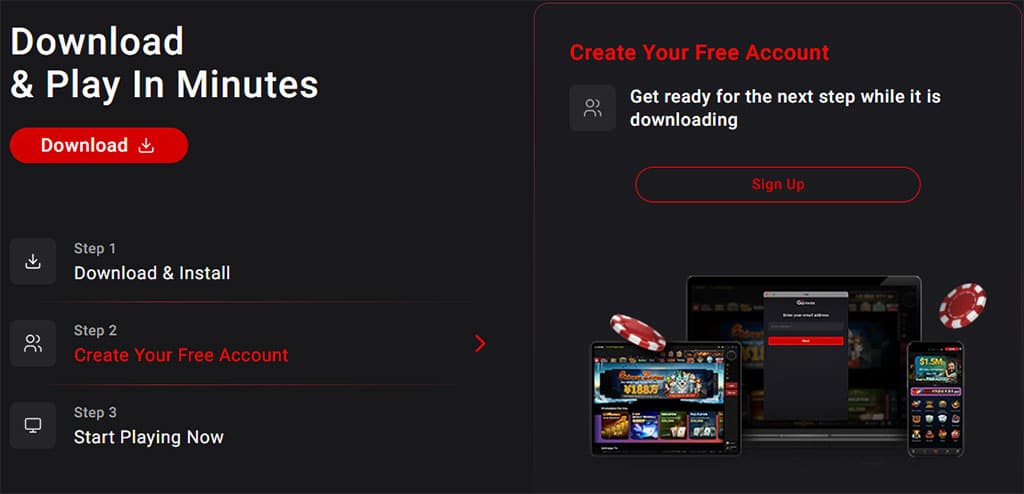
- Visit ggpoker.com in your web browser.
- Click the “Download” button for Windows.
- Once the installer file downloads, double-click it to start the setup.
- Select your preferred language in the setup window.
- Click “Install” and wait for the installation to complete.
- Launch GGPoker from your desktop shortcut or Start menu.
- Log in with your credentials or, if you’re brand new to GGPoker, create a new account.
Mac Installation
- Visit ggpoker.com and click “Download” for Mac.
- Open the downloaded .dmg file.
- Drag the GGPoker app into your Applications folder.
- If macOS blocks the app (from an unidentified developer), go to System Preferences > Security & Privacy and click “Open Anyway”.
- Launch GGPoker and log in.
Mac users should note that some features may behave slightly differently than on Windows due to macOS-specific rendering. If you encounter issues, make sure your macOS version is up to date.
How to Download GGPoker on Mobile
The GGPoker mobile app brings the full poker experience to your phone or tablet. It’s ideal for casual sessions, quick Spin & Gold spins, or keeping up with tournaments when you’re away from your desk.
iOS (iPhone and iPad)
- Open the App Store on your iPhone or iPad.
- Search for “GGPoker”.
- Tap “Get” to download and install the app.
- Open the app and log in or register.
Android
- Visit ggpoker.com on your Android device’s browser.
- Tap the “Download” button for Android.
- If prompted, go to Settings > Security and enable “Unknown Sources” or “Install Unknown Apps” for your browser (the app may not always be available on the Google Play Store in all regions).
- Open the downloaded .apk file and tap “Install”.
- Launch GGPoker and log in.
The mobile app supports most of the same features as the desktop client, including cash games, tournaments, Spin & Gold, Rush & Cash, and the cashier. PokerCraft and some advanced multi-tabling features have a simplified interface on mobile.
Setting Up Your Account After Download
Once GGPoker is installed, the setup process is quick:
- Create an account — Enter your email, password, date of birth, and country. Choose a screen name.
- Verify your email — Check your inbox for a confirmation link and click it.
- Set up security — Enable two-factor authentication in Settings > Security. This takes two minutes and dramatically improves your account protection.
- Make a deposit — Head to the Cashier and fund your account using your preferred payment method.
- Customize your experience — Adjust table themes, card styles, sound settings, and notification preferences.
GGPoker supports over 20 languages, so switch to your preferred language in the settings if English isn’t your first choice.

Common Connection Issues and Fixes
Connection problems are the most common technical complaints in online poker. Here’s how to diagnose and fix them quickly so you can get back to the tables.
Unstable Internet Connection
The most frequent culprit. GGPoker requires a stable internet connection — not necessarily a fast one, but a consistent one.
- Switch to a wired connection if possible. Ethernet is always more reliable than Wi-Fi for online poker.
- Move closer to your router if you must use Wi-Fi.
- Restart your router — the universal fix that works more often than you’d expect.
- Close bandwidth-heavy applications — streaming video, large downloads, and video calls competing for bandwidth can cause disconnections.
- Test your connection — Use a speed test site. If your ping is consistently above 200ms or your connection is dropping packets, contact your ISP.
Firewall or Antivirus Blocking GGPoker
Security software sometimes flags GGPoker’s client as suspicious, blocking its network connections.
- Add GGPoker to your firewall exceptions list.
- Whitelist GGPoker in your antivirus software.
- Temporarily disable your firewall to test if it’s the cause (re-enable it after testing).
- On Windows, check Windows Defender Firewall settings and ensure GGPoker is allowed through.
VPN Interference
If you’re running a VPN, it can interfere with GGPoker’s connection. More importantly, using a VPN to play from a restricted country is prohibited and will result in account closure. If you use a VPN for general privacy, try disconnecting it while playing.
Server Maintenance
GGPoker occasionally performs scheduled maintenance, which temporarily takes servers offline. Maintenance windows are typically announced in advance via the client, social media, and email. If you suddenly can’t connect and everything else checks out, check GGPoker’s social media channels for maintenance announcements.
Troubleshooting Common Problems
App Won’t Launch or Crashes on Startup
- Restart your device — Clears temporary processes that may be conflicting.
- Run as Administrator (Windows) — Right-click the GGPoker shortcut and select “Run as administrator.”
- Update your graphics drivers — Outdated GPU drivers can cause rendering crashes.
- Check for conflicting software — Some overlay programs (Discord overlay, screen recording tools) can conflict with GGPoker.
- Reinstall the client — If all else fails, a fresh install often resolves persistent launch issues.
Slow Performance or Lag
- Close unnecessary applications — Free up RAM and CPU resources.
- Lower table graphics settings — Reduce animations and visual effects in GGPoker’s settings.
- Reduce the number of tables — Multi-tabling demands more resources. Scale back if your device struggles.
- Clear the cache — Accumulated temporary data can slow things down (see below).
Login Issues
- Double-check your credentials — Make sure Caps Lock is off and you’re entering the correct email and password.
- Reset your password — Use the “Forgot Password” link if you’re unsure of your password.
- Check your email for verification codes — New device logins require email verification.
- Ensure the client is updated — Outdated versions may have trouble connecting to current servers.
Missing Features or Games
If certain games or features aren’t visible in your lobby, the most common reasons are:
- Regional restrictions — Not all game types and casino options are available in every jurisdiction.
- Client version — Make sure you’re running the latest version of GGPoker.
- Account restrictions — Some features require a verified or fully active account.

How to Clear Cache and Reinstall
If you’re experiencing persistent issues, clearing the cache or performing a clean reinstall can resolve many problems. Part of using the right tools for poker success is keeping your software running cleanly.
Clearing Cache (Desktop)
- Close GGPoker completely.
- Navigate to the GGPoker installation folder on your computer.
- Look for a cache or temp folder and delete its contents (not the folder itself).
- Restart GGPoker.
Clean Reinstall
- Uninstall GGPoker through your system’s standard uninstall process (Control Panel on Windows, drag to Trash on Mac).
- Delete any remaining GGPoker folders in your AppData (Windows) or Application Support (Mac) directories.
- Download the latest installer from ggpoker.com.
- Install fresh and log in.
On mobile, simply uninstall the app, then re-download and install it from the App Store or GGPoker’s website.
Keeping Your Software Updated
GGPoker regularly releases updates that include bug fixes, new features, and performance improvements. The client typically notifies you when an update is available upon launch.
- Always install updates promptly — Running outdated software can cause connection issues and may prevent you from accessing the lobby.
- Enable auto-updates on mobile to ensure your app stays current.
- Check the version number in Settings > About if you’re unsure whether you’re running the latest version.
Major updates occasionally require a full client re-download rather than a patch. When this happens, GGPoker will provide clear instructions through the client and email.

Contacting Technical Support
If you’ve tried the troubleshooting steps above and still can’t resolve your issue, GGPoker’s technical support team can help.
- In-app live chat — The fastest way to reach support. Available 24/7.
- Email support — For issues that require detailed investigation or file attachments.
- Help center — Visit help.ggpoker.com for searchable articles covering specific issues.
When contacting support about a technical issue, include:
- Your device type and operating system version.
- Your GGPoker client version.
- A description of the issue — what happened, when it started, and any error messages.
- Screenshots if applicable — a picture is worth a thousand support tickets.
The more detail you provide upfront, the faster your issue gets resolved. As GGPoker continues to innovate with new features, staying on top of updates and technical requirements ensures you never miss out.
Key Takeaways
- Available everywhere: GGPoker runs on Windows, Mac, Android, and iOS with modest system requirements.
- Download from official sources: Always get the client from ggpoker.com or official app stores to avoid security risks.
- Connection is key: A stable internet connection (wired if possible) prevents most technical issues.
- Firewall and antivirus: Add GGPoker to your exceptions list if you experience connection problems.
- When in doubt, reinstall: A clean reinstall solves the majority of persistent client issues.
Your Next Move
If you haven’t downloaded GGPoker yet, head to ggpoker.com and grab the client for your platform. The entire process takes a few minutes, and you’ll be at the tables before you know it.
Already installed but experiencing issues? Work through the troubleshooting steps above, starting with the simplest fix first (restart, update, check your connection). Most problems have a quick solution, and if they don’t, GGPoker’s support team is standing by to help you get back in the game.
About the Author: Shawn A. has been writing and editing in the online gaming industry since 2007, reporting live from the WSOP Main Event and conducting interviews with professional players. An active poker player, he combines industry expertise with firsthand knowledge of the games he covers. He currently serves as Global Head of Copywriting at NSUS Group, overseeing brand voice and content strategy across GGPoker and GGVegas.